
The fastest way to get started with Badminton Sensei: open the sample match first, then import a video you already have, then film one live. In about five minutes you'll know what every screen does, and your first real match will go smoothly. This guide covers each step, plus marking the court, the Lock Screen scoreboard, fixing a point, Studio and Crew.
Checklist
Your first week
0 of 8 ticked · saved on this device
1. Start with the sample match
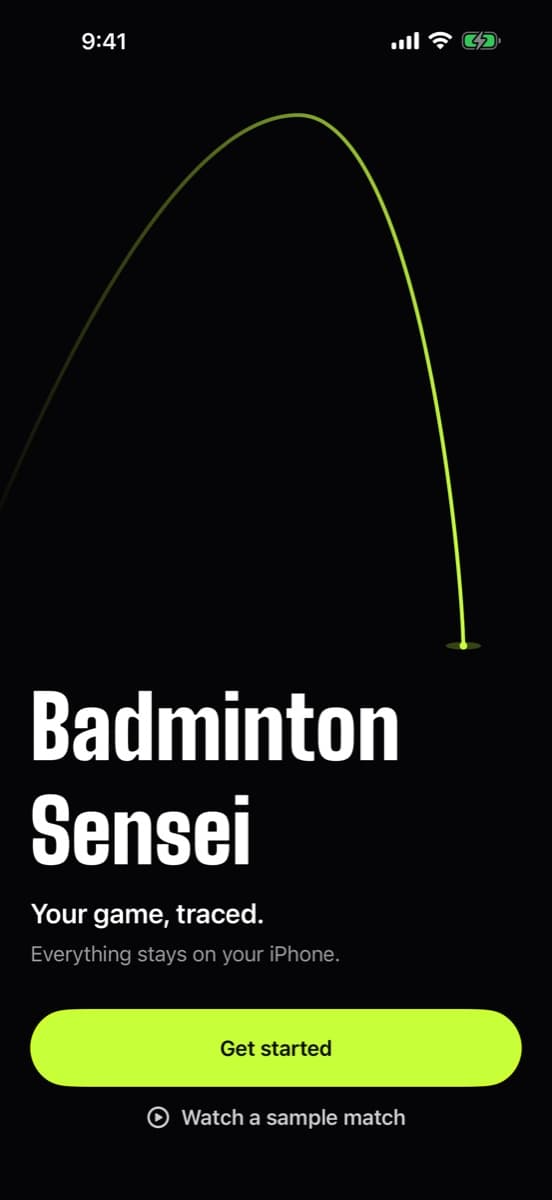
The first screen offers Get started and Watch a sample match. Take the sample. It's a real analysed doubles match bundled with the app, so you can see everything without a court, a tripod or any waiting.
Spend two minutes on it:
- Play the video and watch the tracer and the shot labels follow the shuttle.
- Summary shows the result, Moments (top smash, longest rally, game point) and a Coach's tip.
- Rallies lists every rally with its shot count and who won the point. Tap one to jump to it.
- Stats breaks down the shot mix per player, rally lengths and where shots landed.
You can open the sample again any time with Try a sample match.
2. Import a video you already have
On Matches, tap + and choose a video from Photos, or select several to import a batch. Trim off the warm-up so the analysis starts with the first real rally. Then you can lock the phone or use other apps: analysis continues in the background for as long as iOS allows and picks up again by itself if it's interrupted. Allow notifications and you'll get a local notification when the match is ready.
Singles or doubles is detected from the number of players. If it guessed wrong (someone walked across the court, say), change it from the match with one tap and it re-scores for the right format.
3. Film your first live match
Prop the iPhone behind one baseline, centred, a few feet up, pointing down the court, so both baselines and both sidelines are in view. Higher is better: head height or above on a tripod or a secure ledge gives a much clearer view of the far court. Keep it safely out of the players' way, and keep it still for the whole match.
Want smash speeds you can trust? Film at 120 fps; those readings are marked as verified. 240 fps is tighter still but makes bigger files and uses more battery. The filming setup planner lets you test positions before you go.
You can start a match from the app, or without opening it: say “Start a badminton match in Badminton Sensei” to Siri, or add it to Control Center or the Action button.
4. Mark the court (only if asked)
Sensei needs to know where the court lines are to call lines, measure speed and place shots. Usually it finds the court by itself. If it can't, it asks you to mark the court: drag the four corners onto the outer court lines, starting with the two corners closest to the camera.
- Corner cut off? Drag it past the edge of the video to where it would be.
- Press and hold for a magnifier to place corners precisely.
- You can adjust the corners later from the match.
5. Keep the score on your Lock Screen
While a match is being filmed, a Live Activity shows the score on the Lock Screen and in the Dynamic Island, with +1 buttons for each side and an undo. Points you tap are matched to the rallies Sensei finds, so you can use it as a quick scoreboard without losing the automatic analysis.
Not seeing it? In the Settings app, open Badminton Sensei and turn on Live Activities, and check that Live Activities are allowed when locked under Face ID & Passcode (or Touch ID & Passcode). Low Power Mode can delay updates. More in auto scoring.
6. Fix a point in seconds
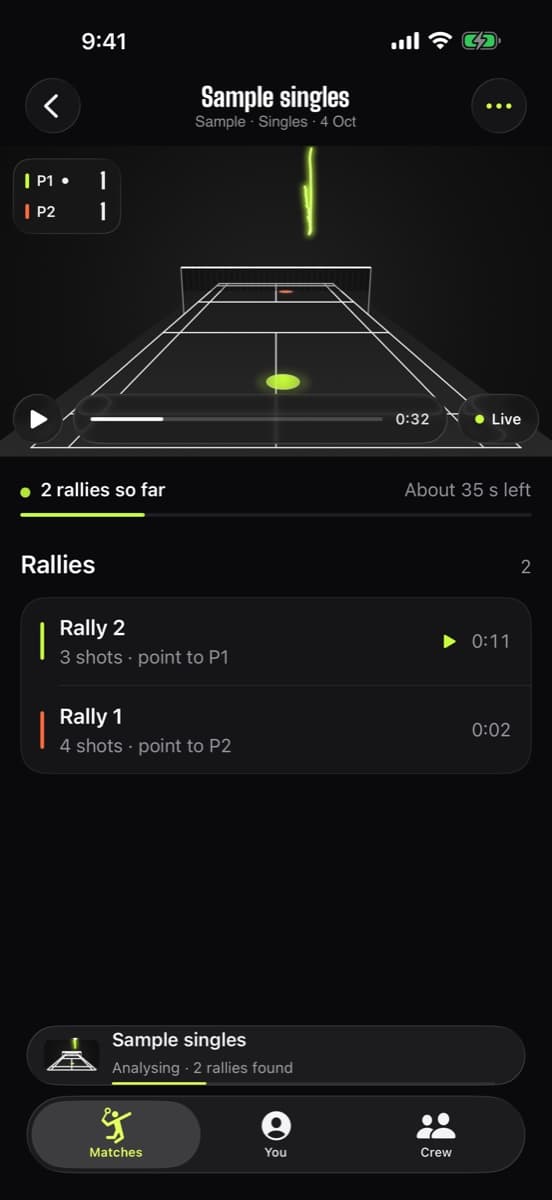
No camera is perfect, so fixing things is fast. Open the match and go to Rallies, then press and hold (or swipe) the rally that went the wrong way and choose who won it. The whole match re-scores instantly, including servers, sides and later games.
- Missed a rally? Scrub the video to it and choose Add a missed rally at the playhead.
- Changed your mind? Undo and redo every fix from the ••• menu.
- Points to confirm collects the points the app was unsure about, so you can check them quickly.
7. Make a highlight in Studio
Open a match and go to Studio. Pick a template such as Highlights, Smash cam, Longest rally or Top 3, or a share card for the match, your top smash or the rally of the night. Choose a shape (9:16 for stories, 4:5 for feeds, 16:9, or 1:1), add music and stats, and blur or pixelate faces if you need to. Tap Share to send it or save it to Photos. See highlights.
8. Start a crew
In the Crew tab, add the people you play with. Run a round robin, a knockout or King of the Court on the night, and the leaderboard and head-to-heads update as results come in. To share results and cards with friends' iPhones nearby, both phones need the app open, Local Network access allowed for Badminton Sensei, and Wi‑Fi and Bluetooth on. No internet or shared Wi‑Fi network needed. More on Crew.
Handy settings
- Speed units: Settings > Speed, km/h or mph. Cards and widgets follow.
- Storage: Settings > Storage shows how much space matches use. Delete a match's video and keep its stats, or remove videos in bulk. Highlight reels need the original video.
- Widgets: add the last score or weekly goal widget to your Home Screen.
- Siri: “How did I play in Badminton Sensei?”
Frequently asked questions
Do I need to create an account?
No. There's no account or sign-in. Open the app and start; everything stays on your iPhone.
How long does it take to analyse a match?
It depends on the video's length and your iPhone. Analysis runs in the background and a local notification tells you when the match is ready.
The app didn't find the court. What now?
It will ask you to mark the court: drag the four corners onto the outer lines, starting with the two nearest the camera. Press and hold for a magnifier.
How do I switch between singles and doubles?
Sensei picks the format from the number of players. If it's wrong, change it from the match with one tap and the match re-scores.
Can I keep using my phone while a match is analysed?
Yes. Analysis keeps going in the background for as long as iOS allows and carries on by itself if interrupted.
Where do I get help?
The support page answers the most common questions, and you can email us from there. Include your iPhone model and iOS version.